

I am a data hoarder. I have terabytes of files from over the decades: old projects; scans of documents, receipts, and bills; video and audio; photos; software, and so on. Basically everything I ever got in the mail, created or downloaded that I think I might ever want again, stored on a NAS.
Some of this is in big archives (ZIP, 7z, or others) that I haven’t seen or touched in years. I also have at least three computers I use regularly that also end up with one-off projects or documents that exist only locally to that machine. Finally, I’ve got automated processes that back up data from the cloud (Google Drive, Gmail, Takeout), my phone, and anything else I can automate dumping to a hard disk.
On any given day, somewhere in there is a thing I’m looking for. There are search tools on each platform. Windows has an index. Synology NAS has universal search. A document management tool I use to scan things has its own index. None of them is especially good, and all are limited in what they can handle. They might not index file contents or metadata, and their search features are basic. I needed something that would let me find a needle in a haystack.
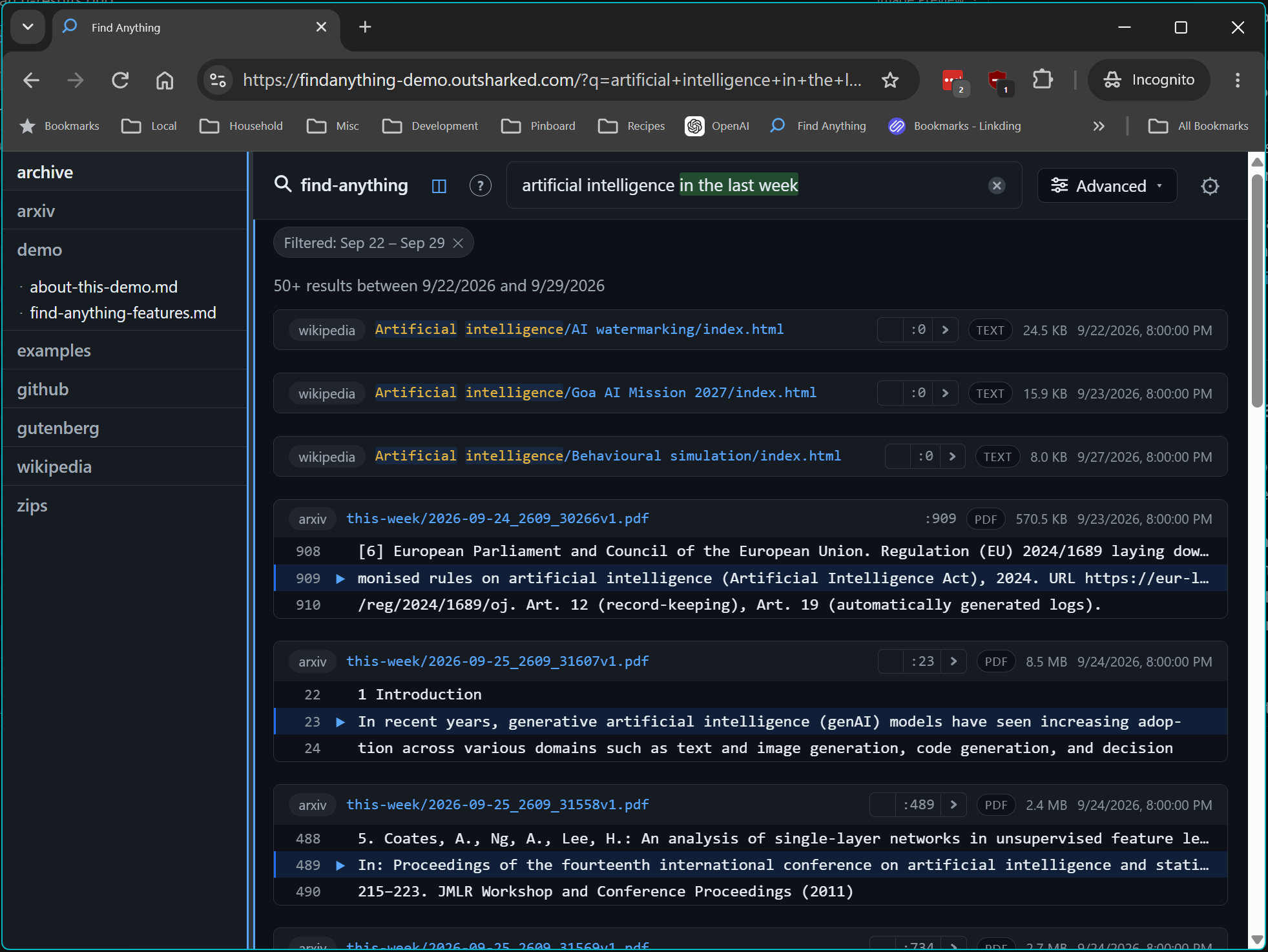
So I built Find Anything. It’s a self-hosted search engine that indexes the full content of files on any number of machines into one central server, then lets you search all of it from a web UI or the command line. There’s a live demo at findanything-demo.outsharked.com.
What it does
- Full-text search across every machine from one place, with fuzzy, exact, and regex modes.
- Looks inside archives. Members of ZIP, TAR, GZ, BZ2, XZ, and 7z archives are indexed as individual files, even
when nested (
backup.tar.gz::old-laptop.zip::taxes/w2.pdf). You can browse into an archive in the tree view like a directory. - Handles many file types: source code and text, Markdown (including frontmatter), PDF, HTML, Office (DOCX, XLSX, PPTX), EPUB, Apple iWork, plus metadata from images (EXIF and GPS), audio tags, video, Windows executables, and even DICOM medical images.
- Deduplication. Identical files are stored once, and search results surface the location of all the copies, which is handy when the same PDF exists in five backups.
- Live updates.
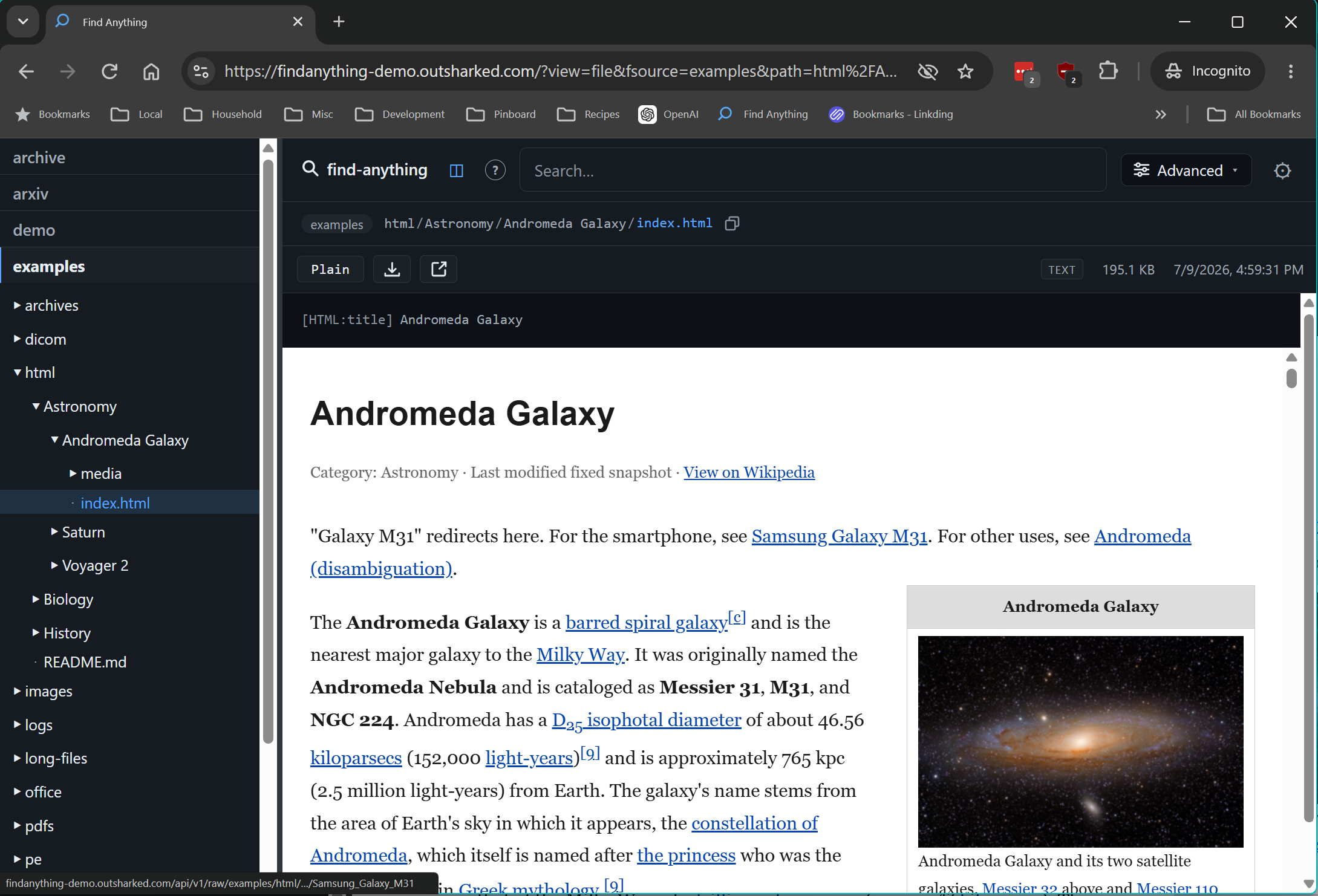
find-watchuses inotify, FSEvents, or the Windows equivalent to keep the index current as files change. - A real file viewer with syntax highlighting, rendered Markdown, images, PDF, and video, plus a Ctrl+P command palette for jumping to files by name, share links, and a stats dashboard.
- Runs almost anywhere, on almost anything: Linux, macOS, Windows (installer plus a service), Docker. It even runs on my ancient Synology DS218j, a 32-bit ARM platform with 500 MB of RAM. If the client doesn’t have enough memory to index something, it can be configured to upload it to the server for indexing.
Surely someone has done this before
File search is an old problem, and before I wrote a line of code I went looking. Here’s what I needed:
- One index, many machines. Search the NAS, my desktops, and my laptop from one place, whichever machine I’m sitting at.
- Full content, not just filenames, including PDFs, Office documents, and the text inside ebooks.
- Inside archives, recursively. A huge part of my data is backups in ZIP/7z/TAR files, sometimes nested.
- Lightweight client. I want to support my crappiest, oldest hardware.
- Self-hosted, with a decent web UI and a CLI.
- Content stays where it is. I don’t want a document management system that ingests things into its own data store. I want to find things where they live in the normal filesystem.
There are dozens of document management tools, filesystem indexers, and so on that have some overlap, but nothing that really solved the problem.
- Windows Search, Spotlight, GNOME Tracker, and KDE Baloo work with varying levels of okayness, but they are limited to the machine they’re running on, and none have any advanced features like indexing content in archives.
- Synology Universal Search is the NAS equivalent. It indexes content for a limited set of formats, only covers the NAS, doesn’t open archives, and on a low-end model it’s slow enough to be arguably terrible.
- Everything is a venerable and effective tool I used for a long time on Windows years ago, but it’s really just a filename grep. It doesn’t search content.
- Recoll was the closest match in spirit. It full-text indexes a huge range of formats, and does look inside archives. But it’s not designed for a client/server architecture; it can only index things attached to the machine that hosts it.
- DocFetcher has the same problem.
- Agent Ransack/FileLocator
and ripgrep-all are really good grep tools.
rgain particular searches PDFs, Office documents, and archives. But these aren’t indexing tools; they’re file scanners. - Paperless-ngx is cool, but it serves a very different purpose. It ingests and stores things, it doesn’t build an index of things where they live.
A few more full-featured tools are closer:
- sist2 (simple incremental search tool) is a mature and full-featured tool, but it’s not client-server. You have to mount everything it scans. This doesn’t work for machines that may be intermittently offline, and it means a huge amount of network traffic to index multi-terabyte stores. Alternatively you can run it on each machine, but this is heavier than a tiny client, there’s no 32-bit ARM build for a NAS like mine, and it defeats the purpose of a centralized index.
- Fess, FSCrawler + Elasticsearch, and DIY Apache Tika + Solr setups are the enterprise versions. They crawl file shares, extract with Tika, and are very capable. They’re also JVM stacks that want gigabytes of heap for the search cluster alone. That’s heavy for a homelab and impossible on a DS218j.
- Diskover has a nice client-server design with Elasticsearch behind it, but it’s aimed at storage metadata (sizes, ages, owners, and duplicates for capacity planning), not searching the text inside files.
- Ambar was the one I most wanted to work: a self-hosted document search engine with a web UI and content extraction. It’s been abandoned for years.
- Datashare (ICIJ) and Aleph (OCCRP) are impressive tools built for investigative journalists digging through leaked document dumps. They’re also heavy, multi-service deployments designed for a newsroom, not a closet.
How they stack up
| Tool | Many machines, one index | File content | Inside archives | Live updates | Runs on a tiny NAS | Web UI |
|---|---|---|---|---|---|---|
| Windows Search | ❌ | ✅ | ❌ | ✅ | n/a | ❌ |
| Spotlight / Tracker | ❌ | ✅ | ❌ | ✅ | n/a | ❌ |
| Synology Universal Search | ❌ (NAS only) | Partial | ❌ | ✅ | ✅ | ✅ |
| Everything | Partial (remote servers) | ❌ (not indexed) | ❌ | ✅ | ❌ (Windows) | Basic |
| Recoll | Via network mounts | ✅ | ✅ | ✅ (inotify) | Heavy-ish | Add-on |
| DocFetcher | ❌ | ✅ | ✅ | Partial | ❌ (Java desktop) | ❌ |
| ripgrep-all | ❌ | ✅ | ✅ | n/a (no index) | ✅ | ❌ |
| Paperless-ngx | Ingest only | ✅ (+OCR) | ❌ (not documented) | Consume folder | Heavy-ish (Docker or full Python stack) | ✅ |
| sist2 | Via mounts / multiple indexes | ✅ | ✅ | Re-scan | ❌ (no 32-bit ARM build) | ✅ |
| Fess / FSCrawler + ES | ✅ (crawls shares) | ✅ | Partial | Scheduled crawl | ❌ (JVM + ES) | ✅ |
| Diskover | ✅ | ❌ (metadata) | ❌ | Scheduled crawl | ❌ (ES) | ✅ |
| Find Anything | ✅ (client agents) | ✅ | ✅ (nested) | ✅ (find-watch) | ✅ | ✅ |
Each tool has strengths and weaknesses, but the real gap turned out to be specific. I wanted the extraction to happen on each machine, close to the files, with one lightweight central index that doesn’t need a search cluster, and with archives treated as first-class directories. This avoids backlogs and heavy load on the server, so it stays responsive to searches and lightweight updates, regardless of what any client may be dealing with. Nothing I found was built that way, so I built it.
Architecture
The system has a central server and lightweight clients.
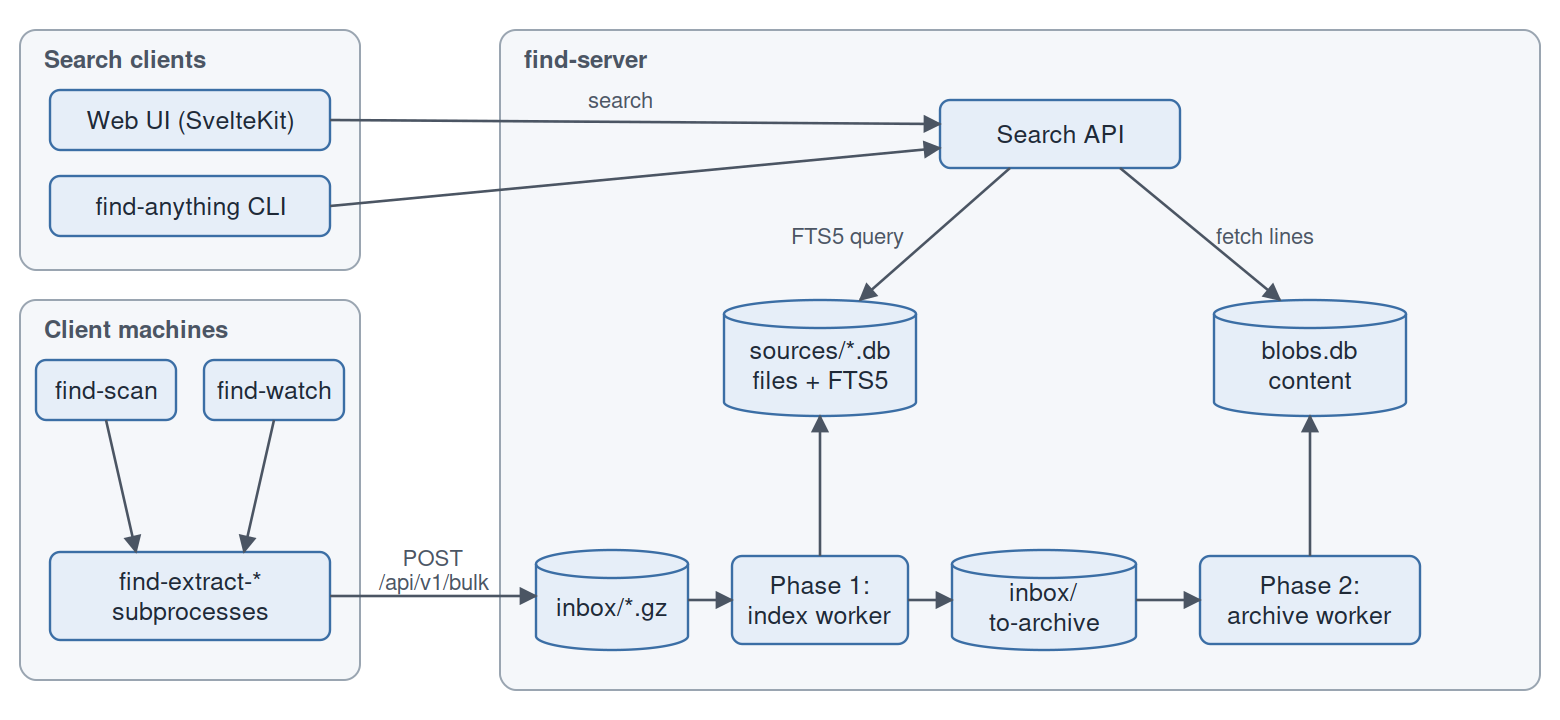
The server and client are Rust, and the web UI is TypeScript/Svelte.
Clients extract content, the server indexes
Content extraction happens on the machine that owns the files. That keeps server load low, so the server stays responsive even when a large amount of new content is being indexed. Clients run file-type specific content extractors locally, and ship just the text to be indexed to the server.
The client can be configured ship the entire file to the server if it’s unable to index it locally due to resource limitations. For example, some archive types can’t be scanned using streaming and require enough memory to load the entire file. FA can be configured to fall back when indexing fails locally by uploading the entire file to the server.
Each extractor (text, pdf, media, html, office, epub, pe, dicom, archive) is both a library and a
standalone binary. A dispatch crate is the single source of truth for “given these bytes, which extractor handles
them?”, and the archive extractor uses the same dispatch for every member it decompresses. A PDF inside a ZIP goes
through exactly the same code path as a PDF on disk.
The write path: an inbox, not a database call
It’s common for a large amount of content to be indexed at once: adding a new index target, copying data from one place to another, restoring a backup. The system needs to handle any amount of load gracefully, and the server needs to remain responsive to new indexing requests and search requests. So the bulk endpoint doesn’t touch the database. Instead, it writes the request to an inbox on the filesystem, and a separate worker processes the inbox as resources permit. Indexing has two steps: updating the main FTS5 index, and adding the content to a separate store:
- Phase 1 (index worker) is the only thing that writes to the per-source SQLite databases. It upserts the
filestable and FTS5 rows, then writes a normalized payload toinbox/to-archive/. - Phase 2 (archive worker) takes those payloads and writes the actual content into
blobs.db.
An inbox file is deleted only after the commit that covers all its writes, so crash recovery is simply “reprocess whatever is still in the inbox.” Every step is idempotent.
Storage: contentless FTS5 + content-addressable blobs
Each source (machine or share) gets its own SQLite database containing a files table and an FTS5 index with the
trigram tokenizer. The FTS5 table is contentless (content=''): it stores only the index, not the text. The text
lives in blobs.db, keyed by the blake3 hash of the file’s bytes, which is where deduplication comes from for free.
There’s no lines table at all. The FTS5 rowid encodes both the file and the line:
1rowid = file_id × 1_000_000 + line_numberA search hit decodes to (file_id, line) arithmetically, and the server fetches only the chunks of the blob that
overlap the lines it needs to display.
Search
Search runs FTS5 trigram queries against every selected source in parallel. For fuzzy mode, FTS5 produces a candidate set (2000 rows by default) that gets re-scored with nucleo-matcher. Regex mode uses FTS to narrow candidates, then post-filters the real content.
The Web UI
The front end is SvelteKit. Results load context lazily as cards scroll into view, the file viewer is virtualized so 100k-line files don’t choke the browser, and live stats and recent-file feeds stream over server-sent events.
Searches happen instantly as you type. There are filters available to restrict by source, date, content type or file extension, and so on. These filters are also available as keywords like “type
” within the search text. You can also use human-form date queries, like “astronomy in the last 2 weeks”.Sources are navigable in a tree view on the left side, which can be expanded or collapsed. Search results are shown in a detail view, which has previews for a variety of formats including PDF, HTML, markdown, syntax-highlighted code, and most image types.
You can download files directly from here, and open Windows file explorer to the target of the file (if a source is configured with a local path). Images can be zoomed and panned. Finally, you can share a link to the document. This will only work within the scope that your server can actually be accessed, of course, but is useful for sharing within a household.
Challenges
The happy path (walk files, extract text, put in SQLite) was working on day one. Nearly all the effort since has gone into things that only show up with real, messy data at scale.
Real-world files are hostile
My backups are full of malformed PDFs, and pdf-extract handles many of them by panicking. Wrapping extraction in
catch_unwind helped, but eventually I forked it and hardened around 35
panic sites so that a single broken font or colorspace logs a warning instead of losing the entire document.
Panics are the easy case, though. Some libraries (lopdf, sevenz-rust2) call handle_alloc_error on OOM, which
aborts the process, and catch_unwind can’t intercept an abort. The only reliable fix was process isolation: both
find-scan and find-watch now run every extractor as a subprocess. If a PDF blows up, one subprocess dies and the
scan moves on to the next file.
Memory on a 500 MB NAS
One of my clients is a Synology DS218j: 32-bit ARM, 500 MB of RAM, and about 314 MB free on a good day. A 7z archive
crashed it with memory allocation of 126086249 bytes failed. It turns out solid 7z blocks report size = 0 for every
entry, so a size check based on the header is useless. The real guard is a hard take(max + 1) on the actual read. When
a member exceeds the limit, its name is indexed and the rest of the stream is drained so the decompressor stays in sync.
The server had its own version of this problem. It once climbed to 3.98 GB on a 4 GB box while indexing a ZIP of a Windows msys64 install. The culprit was one code-formatter process spawned per file for syntax highlighting. The fix was to batch formatter calls and bound server memory. The rule I settled on: handle arbitrarily large inputs by streaming and bounding, never by telling the user to exclude things.
SQLite concurrency, and the retreat to a single writer
At one point I added a pool of parallel inbox workers so that one slow request couldn’t block the queue. That produced a string of WAL deadlocks, reproducible only on WSL and network mounts, where POSIX advisory locking can’t be trusted. The shape was always the same: two write transactions on one connection, where the second waits forever for a lock that never clears.
After several band-aids I went back to exactly one SQLite writer and moved the slow I/O into the separate Phase 2 worker. That’s where today’s two-phase design comes from. Parallelism wasn’t worth it; decoupling was.
With a single writer, the next bottleneck was commit cost. A production deployment with a 19 GB source database showed
100–250× write amplification when find-watch sent a burst of single-file requests, since each one paid for a full
commit. The fix was group coalescing: consecutive inbox files for the same source share one connection and commit
every 25 writes across request boundaries. The worker never holds a transaction open waiting for future requests;
coalescing only applies to work that’s already queued.
Storage went through several designs
Content storage has been rewritten more than any other part:
- A
linestable with one row per line (enormous row counts). - Content chunked into ZIP archives on disk, with a canonical/alias system for duplicates. That caused a “phantom canonical” class of bugs when the canonical copy was deleted.
- Schema v3, content-addressable: blobs keyed by hash, the rowid trick, and no alias pointers. About 25× fewer rows.
- Moving the ZIP code behind a
ContentStoretrait, then benchmarking backends with a purpose-builtfind-testtool. The result is today’sblobs.db, a single SQLite database of chunks with WAL-mode concurrent readers.
Performance work followed the same pattern. One social security number fuzzy search took 26 seconds on spinning
disks because every FTS candidate triggered a random ZIP read. The fix was to not read content at all until you know
which results you’re going to show.
Contentless FTS5 has sharp edges
A contentless FTS5 index can’t delete a row by itself. You have to give it back the exact original text. So re-indexing
a modified file means reading the old blob and issuing a 'delete' for each old line before inserting the new ones.
Passing an empty string corrupts the FTS state, so empty lines have to be skipped.
The same tight coupling between index and blob produced a memorable bug: search results that highlighted the line
after the match. The chunker was counting line positions one ahead of what the FTS rowid encoded, so get_lines(7194)
returned line 7195.
Archives are transactions
Indexing a big archive can take minutes and get interrupted halfway. To keep the index consistent, the client first
submits the outer archive with mtime = 0 as a “start” sentinel (the server deletes old members), then streams the
members, then sends the real mtime. If the scan dies partway through, the archive still has mtime = 0 in the database,
which never matches a real file, so the next scan redoes it automatically.
Where it’s at
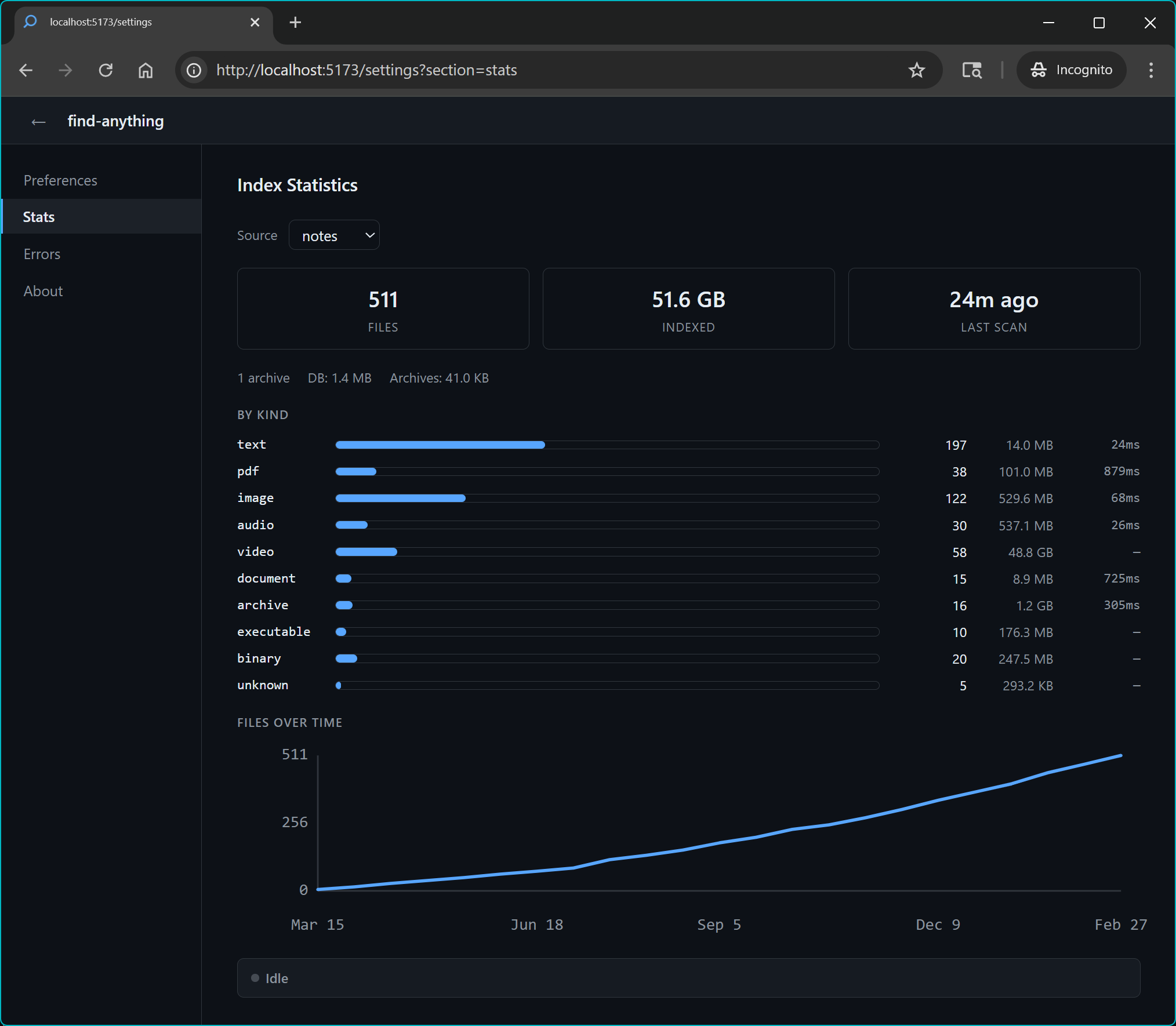
I use it every day, and it’s stable and useful. There are still a couple of areas for improvement:
- Security: There’s none right now. It wasn’t designed to be a multi-user system or be public-facing. I’ve already realized some basic user-level security might be useful even within a household and plan to add that. I’m also adding a better client/server authentication model (revocable tokens instead of a single shared key).
- Windows client: It works fine, but the installation process could be simpler and the tray UI is a little rough around the edges. I don’t use it much so I haven’t invested much in polishing it.
- I plan to add LLM support (local or otherwise) to improve search results. While this works far better than anything I had before, there can still be hundreds of results for patterns I’m looking for when it’s something common. I’ll allow using AI to filter results based on any prompt you want.
- Considering allowing editing files via the web UI for network-attached sources. I don’t want to get too far down this rabbit hole, but a simple plain text editor would be a time saver.
I have some related things in progress to improve metadata extraction. I don’t want Find Anything involved in this, because it involves altering files or perhaps creating sidecars. FA is an indexer, not a content producer. But as part of this process I’ve found some searchability gaps:
- Image tagging - EXIF data is probably very limited and not especially useful for finding images by context searching
- Audio transcriptions of audio/video recordings
- OCR of PDFs lacking text metadata and possibly images
- Enhanced metadata for other types of files (e.g. software - we can find details about software on the internet)
These are all solved problems, so it’s really an integration task. Like FA itself, the tooling generally available might not be exactly the form I need, so I’ll probably build a general tool can be configured for how to handle each file type. For audio/video, a sidecar with Whisper transcription would be pretty straightforward. PDFs and images can just be updated to include the text content. I already stood up a simple tool to use an LLM to tag images called Phototag. FA will probably be enhanced so a plugin can be run as a pre-indexing step, where we can hook in this metadata generation subsystem.
Find Anything is at v0.8.6 at the time of this writing, with release builds for Linux (x86_64, ARM, and older-glibc NAS targets), macOS, and Windows. The code is on GitHub, and you can try it at the demo.